The web UI
Dependably ships with a built-in web console. Open your base URL in a
browser (for example https://repo.example.com) and sign in. From there you
can browse what your registry holds, check a package before you add it, see
which versions carry advisories, create the token your tools need, and copy a
ready-made configuration for each package manager.
Everything here works without server access or config files. See Getting started for the base URL and token every guide needs.
Signing in
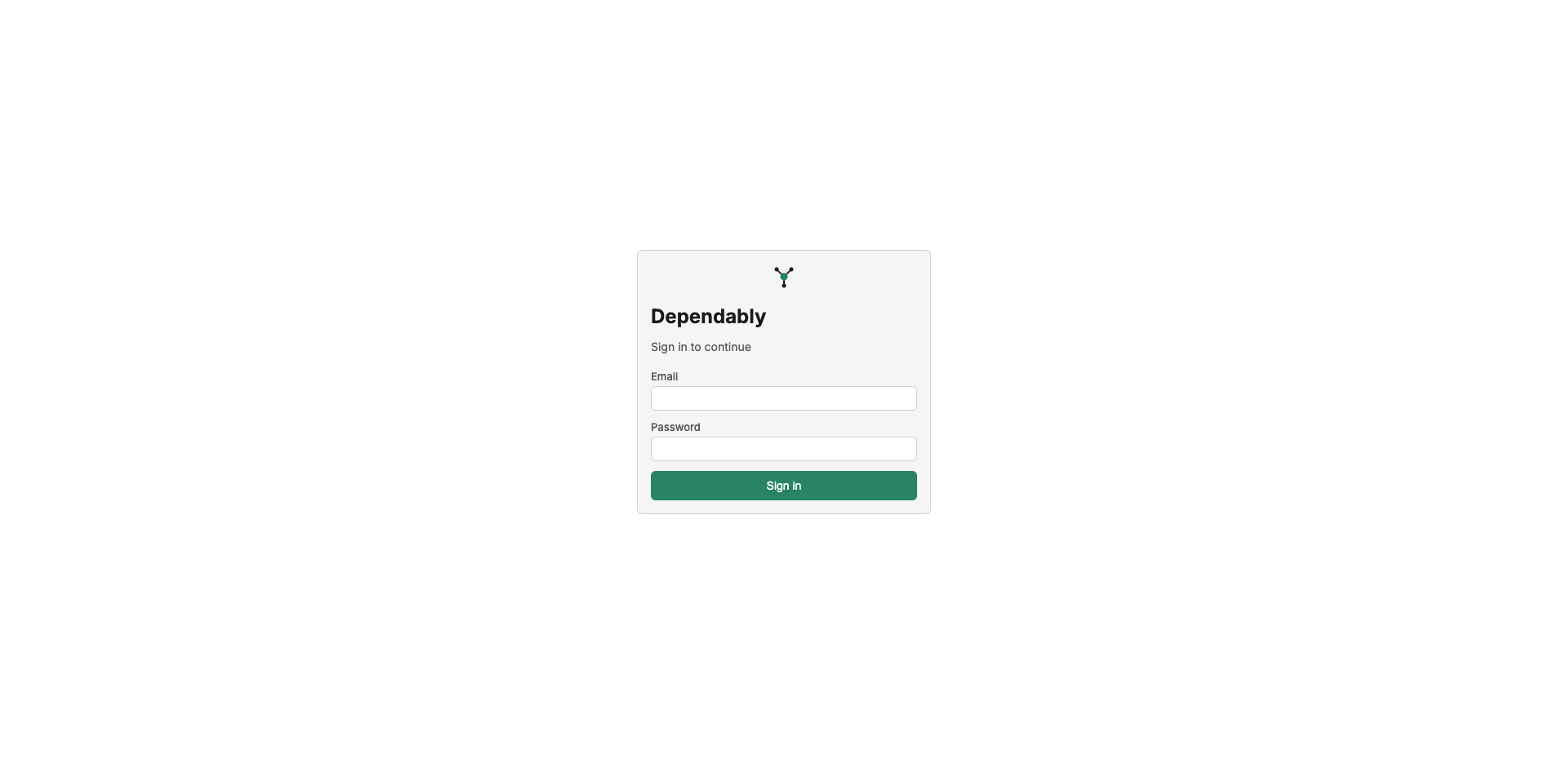
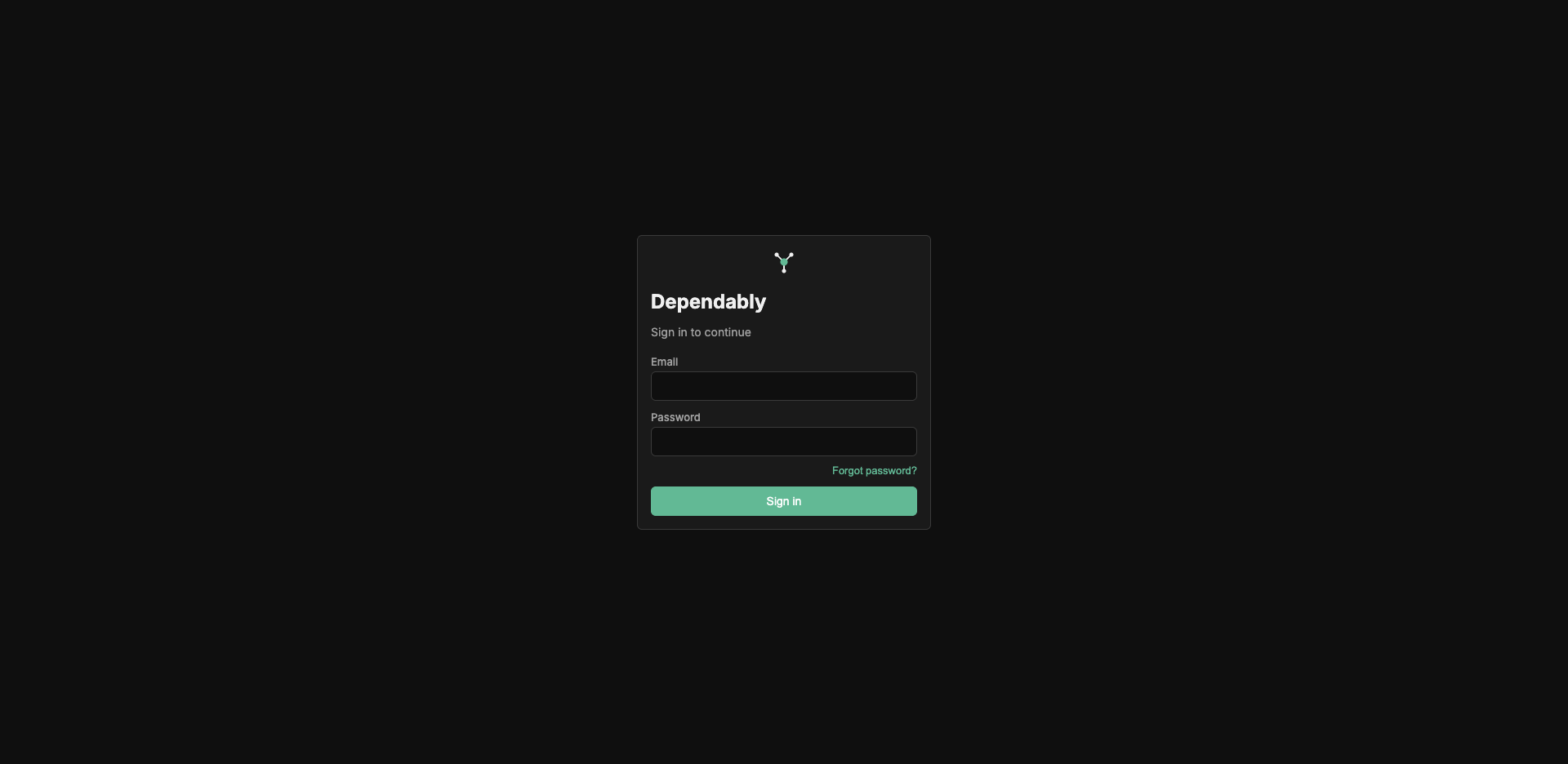
The base URL opens a sign-in screen. Enter your Email and Password and select Sign in.
- If your account has two-factor authentication, the same card asks for the 6-digit code from your authenticator app. You can tick Remember this device for 30 days, or choose Use a recovery code instead.
- If your organization uses SAML single sign-on, a Sign in with SSO button (your organization may have given it its own label) takes you to your identity provider.
- If too many attempts fail, the page reads Too many attempts and the button stays disabled until the countdown on screen ends.
- Select Forgot password? to have a reset link sent to your email. The confirmation is the same whether or not the address exists. The link opens a page where you set a new password of at least 12 characters.
If you were invited, the invite link opens a page where you choose a password of at least 12 characters and accept the invite. If your organization requires two-factor authentication and you have not set it up, signing in takes you to Profile to set it up before you can continue.
Finding your way around
Navigation is a sidebar on the left. Select the Dependably logo at the top of it to return to the Overview; the button beside the logo collapses the sidebar to icons.
| Sidebar item | What you do there |
|---|---|
| Packages | Browse and search every package the registry holds; open one to see its versions, checksums, licence, and advisory status. |
| Projects | The applications you build, each described by an uploaded SBOM, with the components and findings of every version. |
| Lookup | Check a package for malware, known vulnerabilities, and licence policy before you add it. Nothing is downloaded or cached. |
| Vulnerabilities | Every known advisory affecting a cached version, with severity, score, exploit likelihood, and a fix recipe. |
| Risk | Versions that are far behind upstream, and versions whose licence is blocked or unknown. |
| Policies | Your organization's licence policy (which SPDX licences are allowed, conditional, or blocked, and whether it is enforced) and a read-only summary of every policy gate. |
| Tokens | Create and revoke the personal access tokens your package managers sign in with. |
The bottom of the sidebar holds Setup, a wizard that creates a token and gives you the configuration for your package manager. Below it, Notices opens the open-source notices: every third-party component Dependably is built from, with its version, licence, and copyright. The last line shows the Version of Dependably you are using.
The bar across the top holds a search box, a Profile button that opens your account settings, and Sign out.
Search
Press / anywhere in the console to jump to the search box, then type at least
two characters. Results are grouped into Packages, Projects, and
Vulnerabilities. Use the arrow keys and Enter, or select a result, to open
the package, the project, or the Vulnerabilities page filtered to that advisory.
Banners
Above the page you may see an announcement an administrator has posted for your organization; dismiss it and it stays dismissed for your account. A strip may also warn that the instance is served over plain HTTP; dismiss it once and it stays dismissed on that browser. An Air-gapped badge appears in the sidebar when the instance has no route to the public registries.
What a member sees
The screenshots in this section were taken by an administrator, so they show the Admin section in the sidebar and a notification bell in the top bar. A member's console has neither; everything else is the same.
Members, administrators, and owners can use every page listed above. Administrators and owners also see an Admin section in the sidebar: Quarantine, Users, Audit, Upload, and Settings. Those pages do not appear in a member's sidebar, and a bookmarked link to one of them opens the Overview instead. The Auditor role is for reviewing the Audit log and holds no access to packages. The roles and what each allows are described in Access control (RBAC).
Each session belongs to exactly one organization. On a multi-tenant instance
you reach your organization through its own address, for example
https://acme.repo.example.com, and everything you see belongs to it.