Access tokens
Your package managers authenticate to Dependably with a token. The Tokens page is where you create your personal tokens and revoke the ones you stop using. The Setup wizard can create one for you as its first step; this page is for managing them afterwards.
A personal token is tied to your account and is best for your own machine. For CI and shared automation an administrator creates a service token, which belongs to the organization rather than to a person. See Users & tokens.
Create a token
-
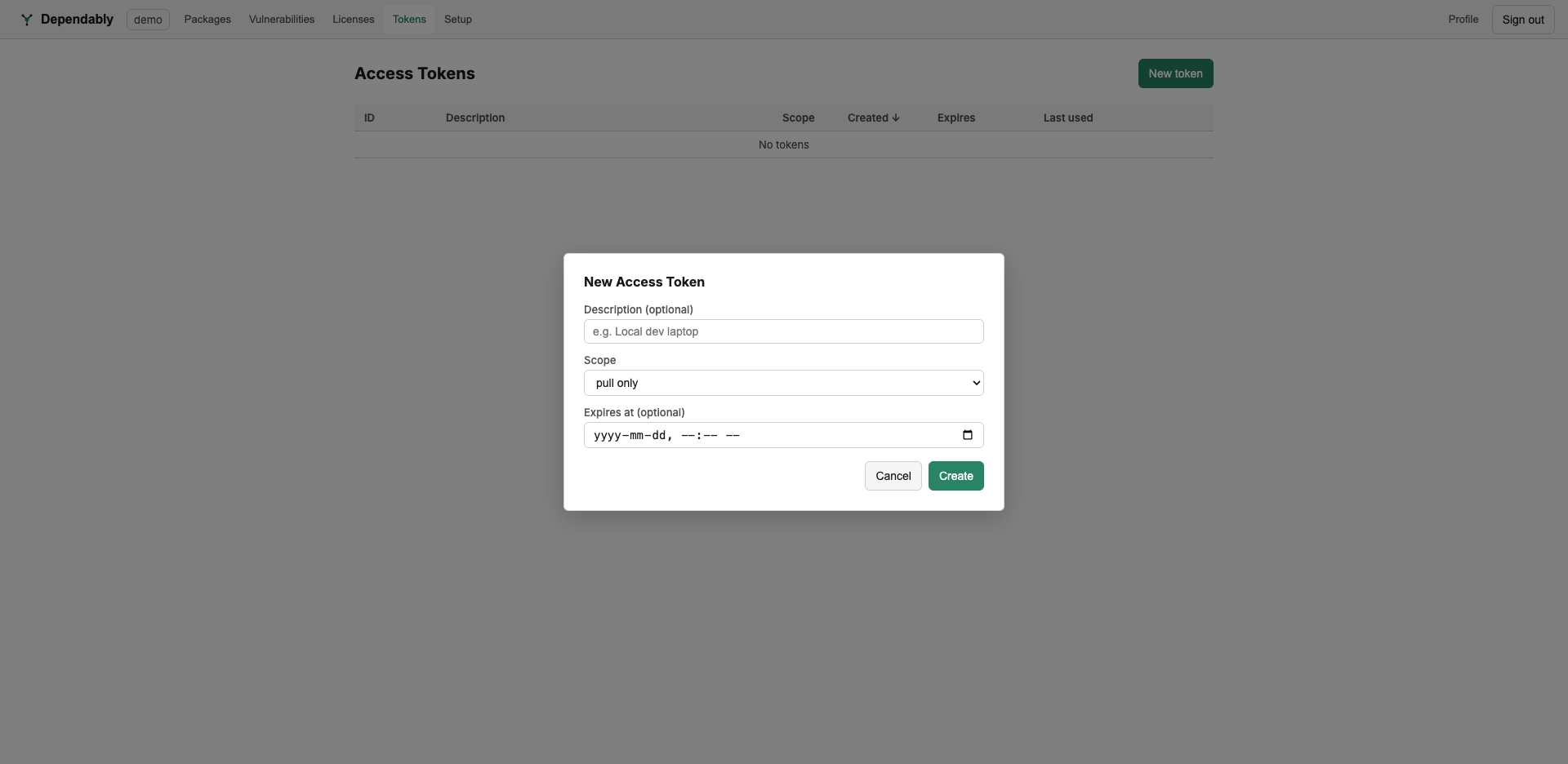
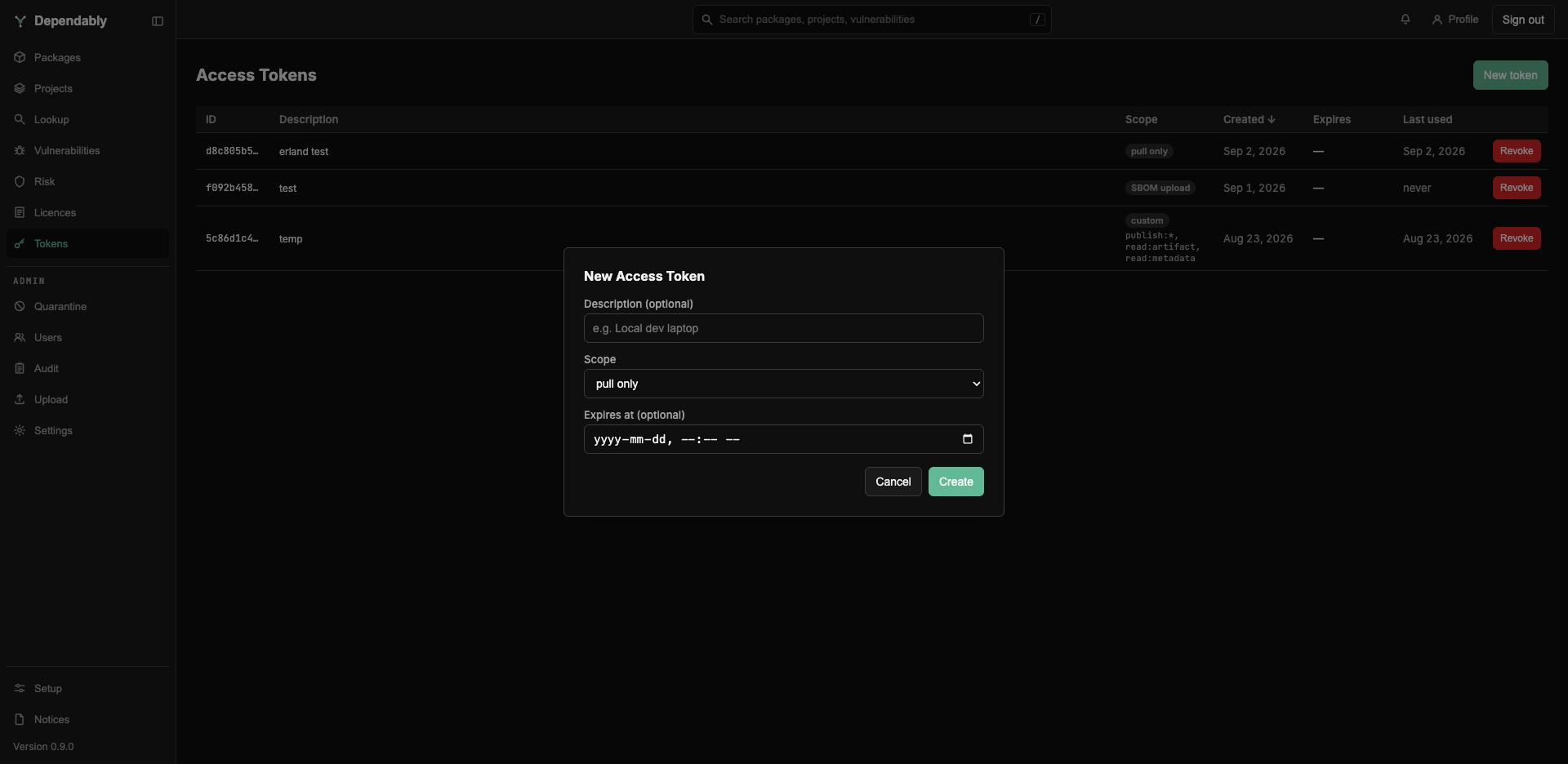
Open Tokens and select New token.
-
Optionally enter a Description (for example, Local dev laptop) so you can tell your tokens apart later.
-
Choose a Scope:
- pull only: install and download packages.
- push only: publish packages.
- push & pull: install and publish.
A token can never do more than your own role allows. A member's role can only pull, so choosing a push scope is refused when you select Create; publishing needs the Admin or Owner role. Admins and Owners also see three privileged scopes: admin (read and change organization settings), audit (read the audit log, for SIEM integrations), and SBOM upload (upload SBOM, VEX, and SARIF documents to Projects from CI).
-
Optionally set Expires at. Leave it empty for a token that does not expire. A dated token you rotate is safer.
-
Select Create.
Dependably shows the token value once, with a Copy button. Store it in your tool's credential store or your CI secret manager, because Dependably keeps only a hash and cannot show the value again. If you lose it, revoke it and create a new one.
Keep tokens secret. Treat a token like a password. Create a separate token per machine or pipeline so you can revoke one without disrupting the others.
Each organization has a ceiling on active tokens, personal and service combined; expired tokens do not count. At the ceiling, Create fails with an error that names the limit. Revoke tokens you do not use, then try again.
Review and revoke
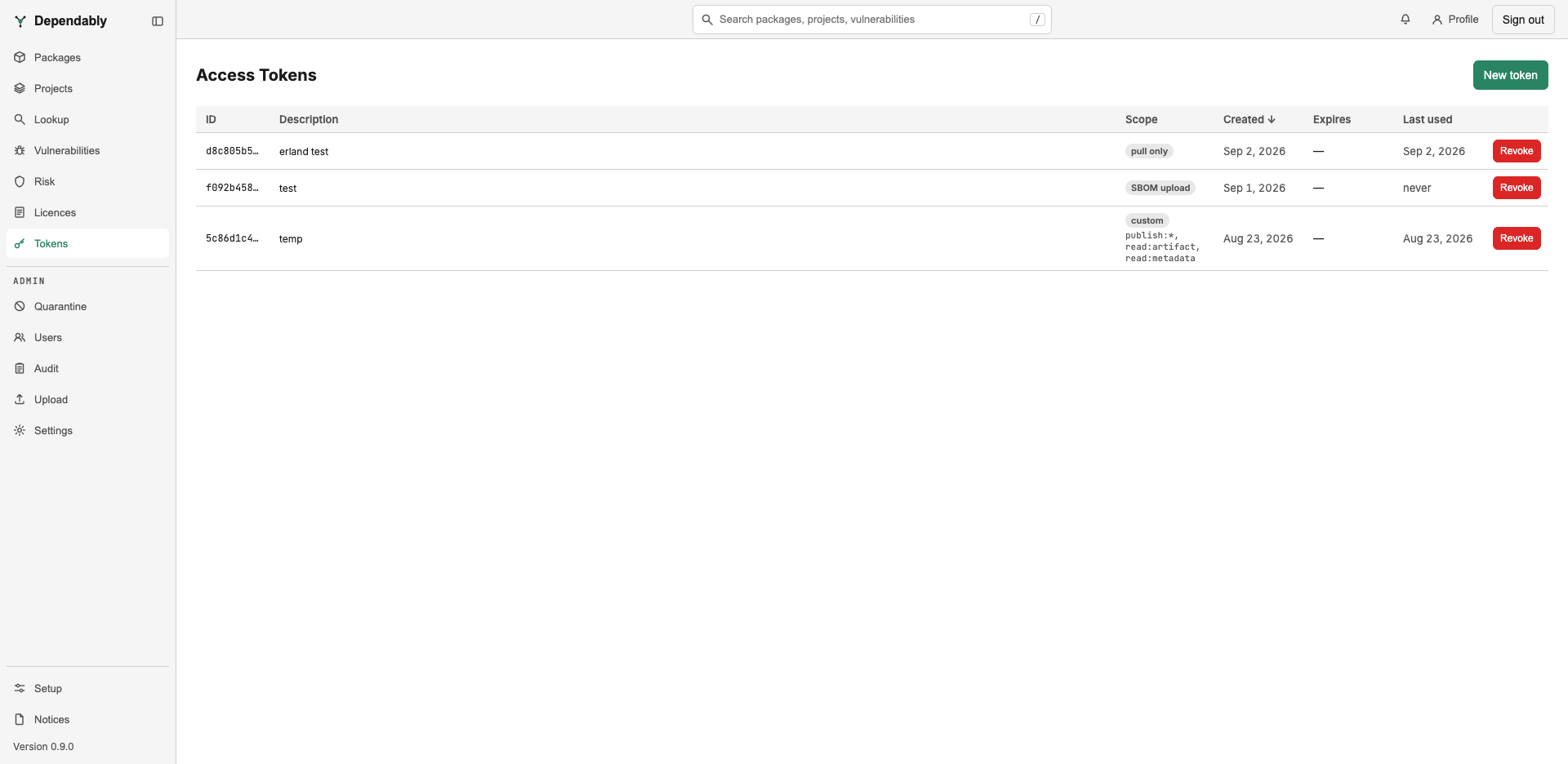
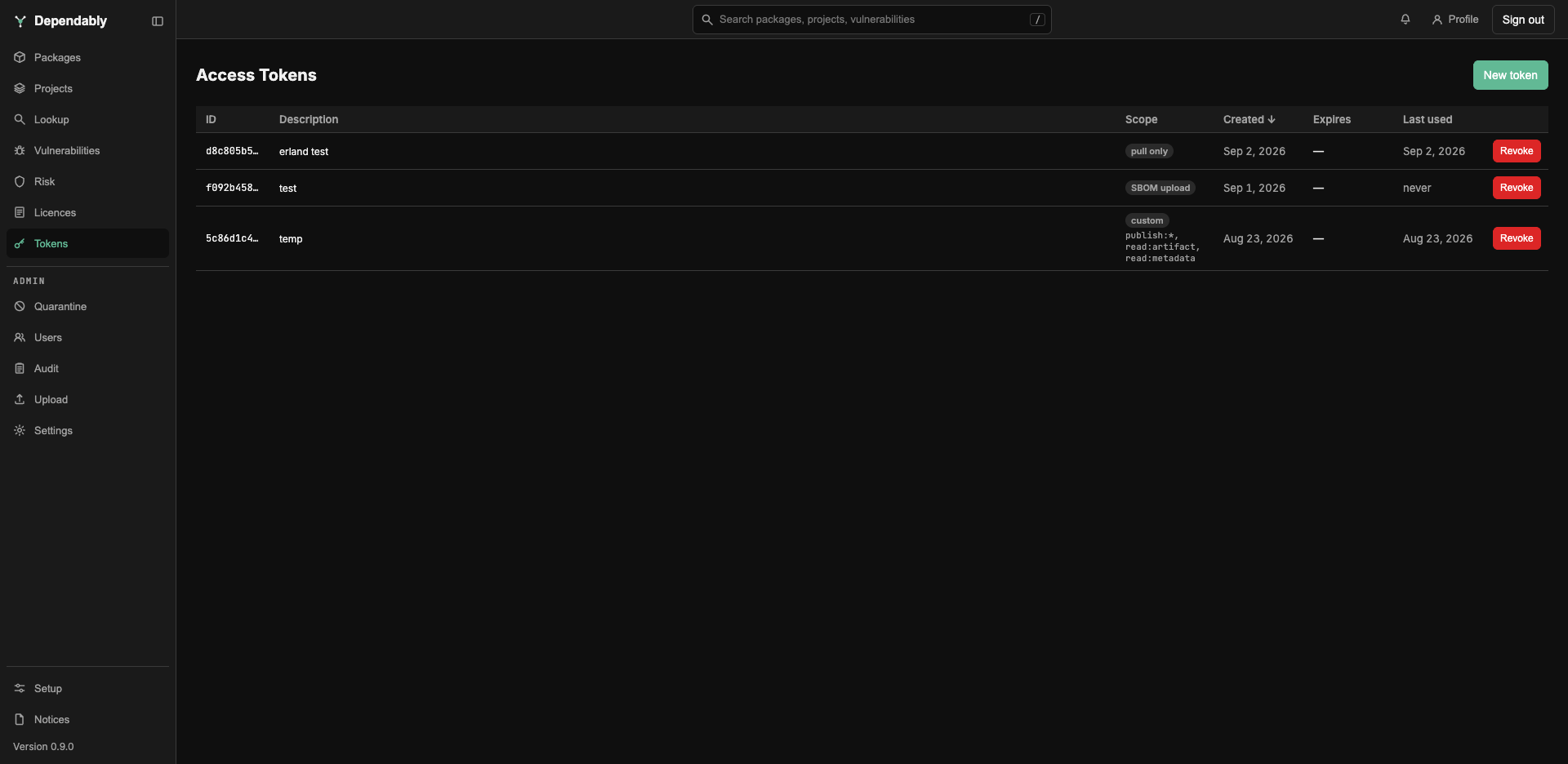
The table lists your tokens with their ID, Description, Scope, Created, Expires, and Last used time. Last used reads never for a token that has not been used, and Expires shows an expired badge once the expiry has passed, so you can spot a token that is unused or past its purpose. A token created through the API with a set of permissions that matches no scope above shows custom, with its capabilities listed underneath.
To revoke a token, select Revoke on its row and confirm the browser prompt. Revocation is immediate.
Changing your password or disabling two-factor authentication also revokes every token you own.
Use the token
Each ecosystem guide shows the exact command that stores the token in that tool's own config. Start from Setup for a ready-made configuration, or open the full guide for your tool from the documentation home. The roles and what each allows are in Access control (RBAC).