Your profile
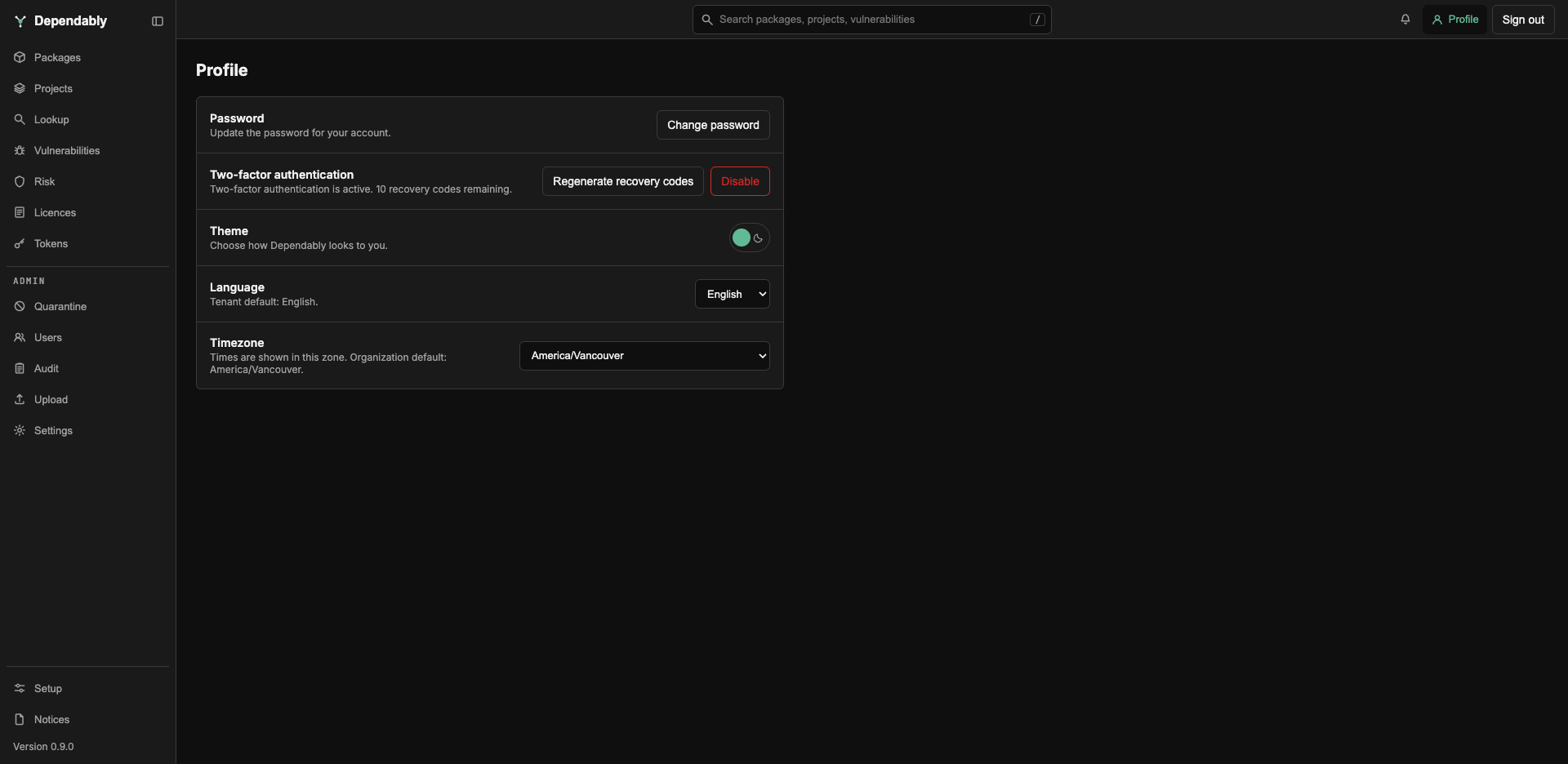
The Profile button in the top bar opens your personal account settings: your password, two-factor authentication, and how the console looks to you. Sign out sits beside it.
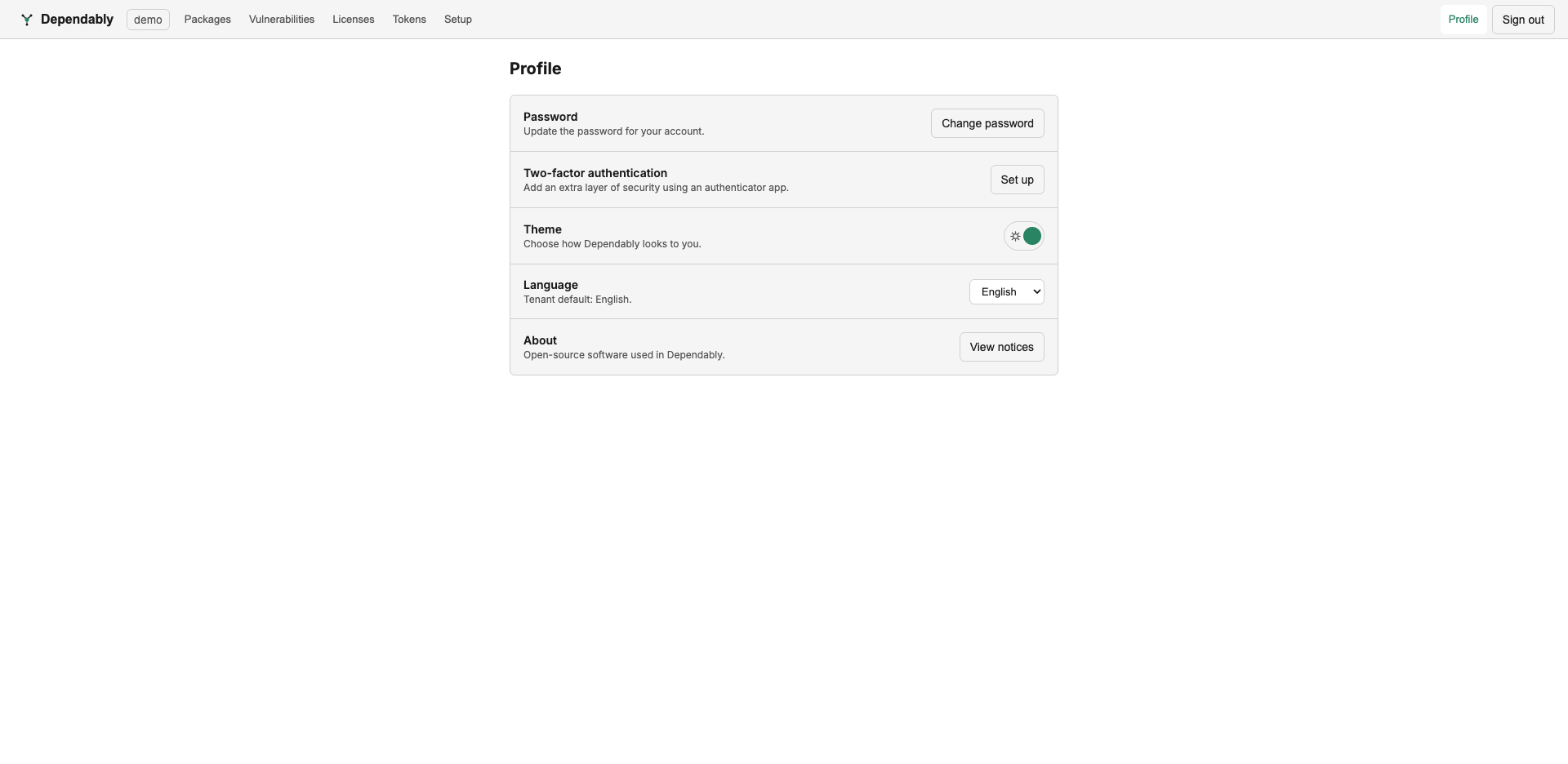
Change your password
Select Change password, then enter your current password and the new one twice. A password must be at least 12 characters and no more than 72 bytes, and must not be the one you are replacing. It is also rejected when it is easy to guess or contains the part of your email address before the @, your organization's short name from its web address, or the word "dependably".
Changing your password signs out your other sessions and revokes your API tokens, so create fresh tokens afterwards. The browser you changed it from stays signed in.
If your password was generated when the instance or your organization was set up (the organization's first owner account), the console brings you here first and will not let you continue until you have chosen your own.
Two-factor authentication
Add a second factor with an authenticator app that generates time-based one-time passwords (TOTP):
- Select Set up next to Two-factor authentication.
- Scan the QR code with your authenticator app, or enter the Manual entry key by hand.
- Enter the 6-digit code your app shows and select Enable two-factor authentication.
- Dependably shows 10 recovery codes. Save them somewhere safe. Each works once and lets you sign in if you lose your authenticator. They are shown only this once; Copy puts them on your clipboard.
From then on you enter a code at sign-in, or tick Remember this device for 30 days. Without your authenticator, choose Use a recovery code instead on the sign-in screen and enter one of the saved codes. The row shows how many recovery codes you have left, with two more actions:
- Regenerate recovery codes: enter a code from your app or an unused recovery code to get a new set of 10. The old set stops working.
- Disable: enter your current password and a code from your app or a recovery code. Disabling signs out your other sessions, revokes your API tokens, and forgets every remembered device.
If your organization requires two-factor authentication, the console opens this setup for you after sign-in and will not let you continue until it is done. The organization-wide setting is described in Authentication.
Theme
The Theme switch chooses light or dark. Your choice is remembered on this browser only.
Language
Choose English or Français. The row shows your organization's default, which applies until you pick one here. Your choice is saved to your account, so it follows you to other browsers.
Timezone
Times throughout the console are shown in this zone. Leave Use organization default selected to follow your organization, or pick any zone from the list. This too is saved to your account.
Open-source notices
The list of third-party components Dependably is built from, with each version, licence, and copyright, is under Notices at the bottom of the sidebar rather than on this page.